Vara cold storage via Polkadot Vault (formerly Parity Signer)
Polkadot Vault allows you to turn any mobile device based on Android or iOS into a real cold wallet. Your private keys are kept secure offline at all times and transactions are signed in an air-gapped way via QR-codes. A huge advantage is the completely open and transparent source code of the product.
Vara Network completely supports working with Polkadot Vault.
Installation
There are several ways to get the Polkadot Vault.
Download from the application store for your device:


Download directly from the GitHub:
https://github.com/paritytech/parity-signer/releases
Create your keys
Air-Gap Security
To protect your accounts, the device with Polkadot Vault must never go online.
Physically disable or turn off Wi-Fi, Mobile Data, and Bluetooth. While switching to Airplane Mode suffices in many cases, total isolation is the best practice to prevent online threats.
-
Go offline, open your Polkadot Vault application, accept Privacy Policy, create your PIN code.
-
Click the
New seedbutton to generate and store your private keys. Backup your seed phrase on paper or try other reliable methods.
Add Vara Network
To sign messages/transactions, and transfer funds to and from Vara account you need to add Vara Network into the app.
-
Open your Polkadot Vault and tap the
scanbutton -
Go to Metadata Portal, switch to
Chain Specstab -
Scan the
spec QR codewith your device to add Vara network.
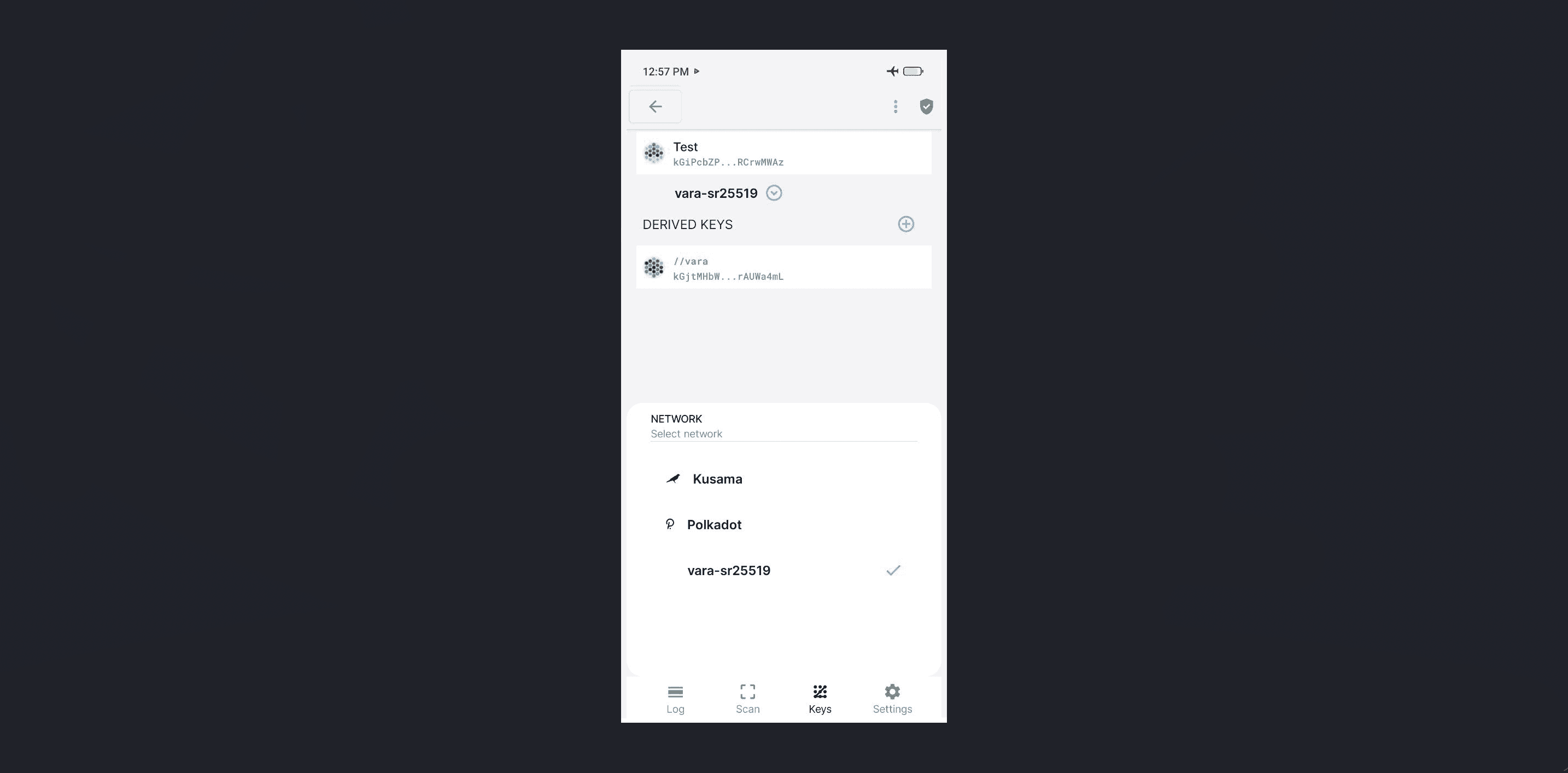
After spec scanning you can select Vara Network for your account:
Add network Metadata
To sign and broadcast your transaction, we will also need the metadata of the given network. Polkadot Vault can be easily updated with the latest blockchain metadata while staying offline.
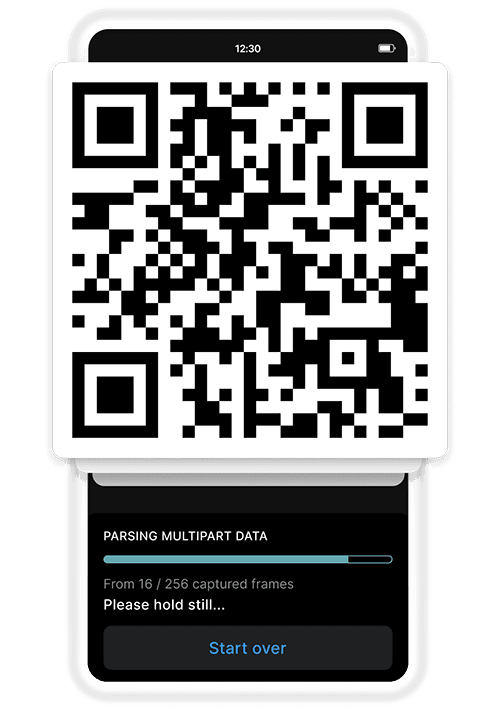
To get the latest blockchain metadata:
-
Open your Polkadot Vault and select tab
scan -
Again go to Metadata Portal
-
In the
Metadatatab, scan video QR with metadata frames. Wait forParsing multipart datais completed.
Metadata Updates
Scanning QR codes with metadata can take some time. Ensure your Polkadot Vault is updated to the latest version of metadata after every network runtime upgrade.
Why? We generate new QR codes for each upgrade. If the metadata is outdated, you will need to re-scan to maintain compatibility.
When all metadata is uploaded, Polkadot Vault will be ready to work with the Vara Network.
How to use
Polkadot Vault allows you to sign transactions using an air-gapped way. You scan a QR code with details about your transaction, then generate a code already signed on your offline device and deliver it as confirmation. Many applications support this feature.
SubWallet
-
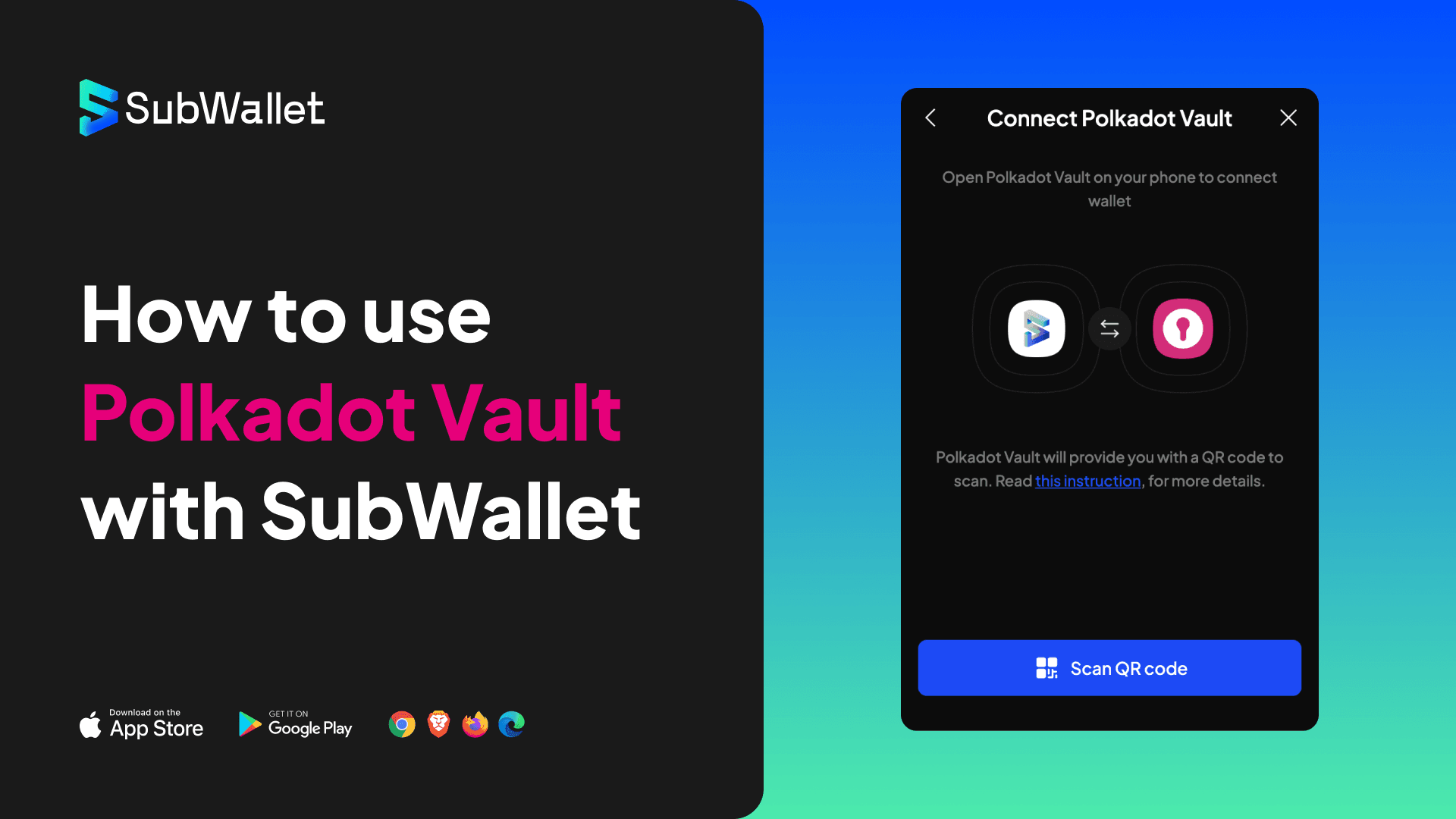
For instructions on how to use Polkadot Vault with SubWallet Extension, see here.
-
For instructions on how to use Polkadot Vault with SubWallet Mobile, see here.
-
For visual instructions, see the video here.
Nova Wallet
Nova Wallet also supports Polkadot Vault. More details are here.
Polkadot.{js}
To import your hard wallet account into Polkadot.js:
- You should go to Accounts section and click the
from QRbutton.
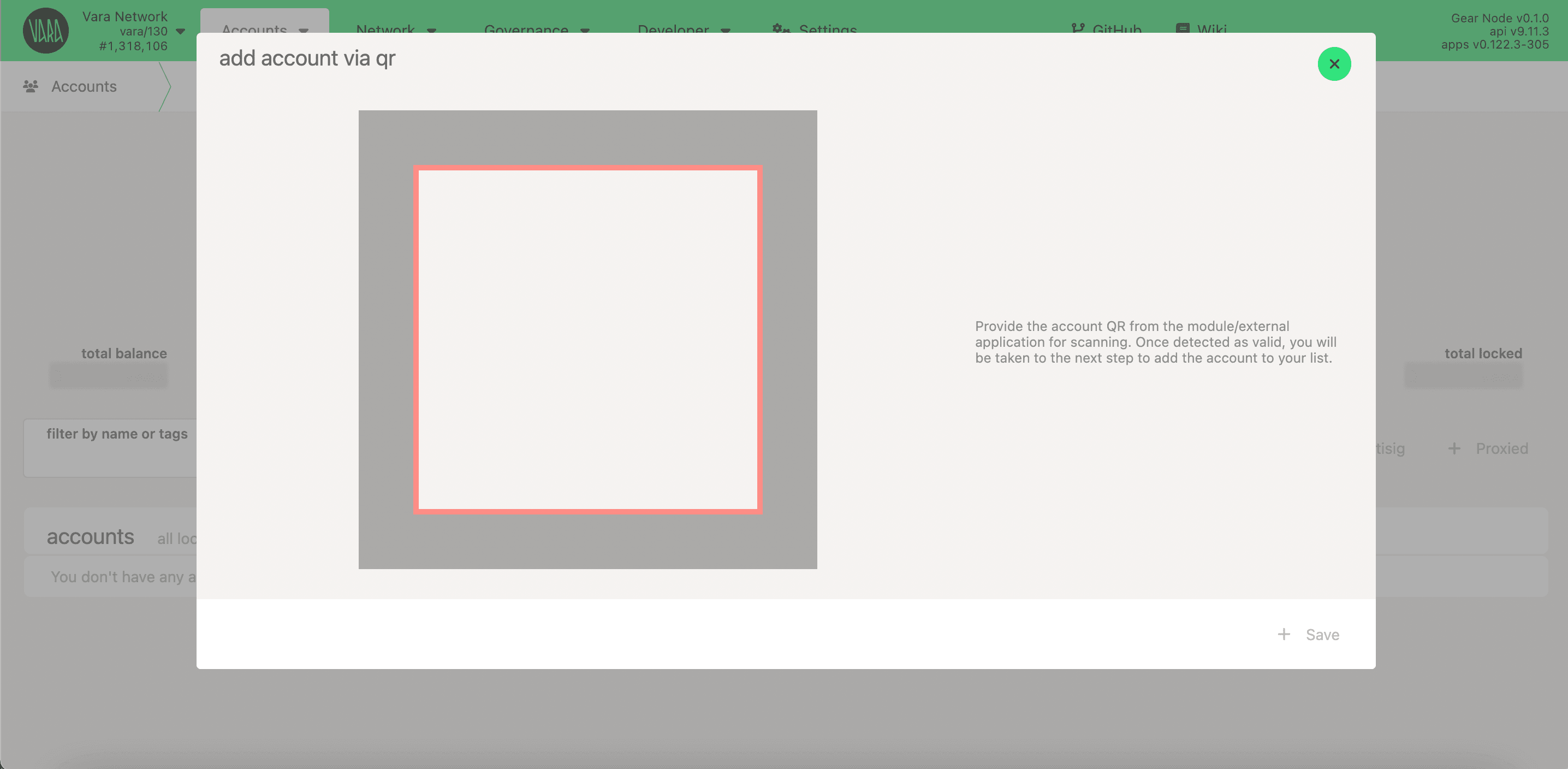
- In the Polkadot Vault app, select your account and network.
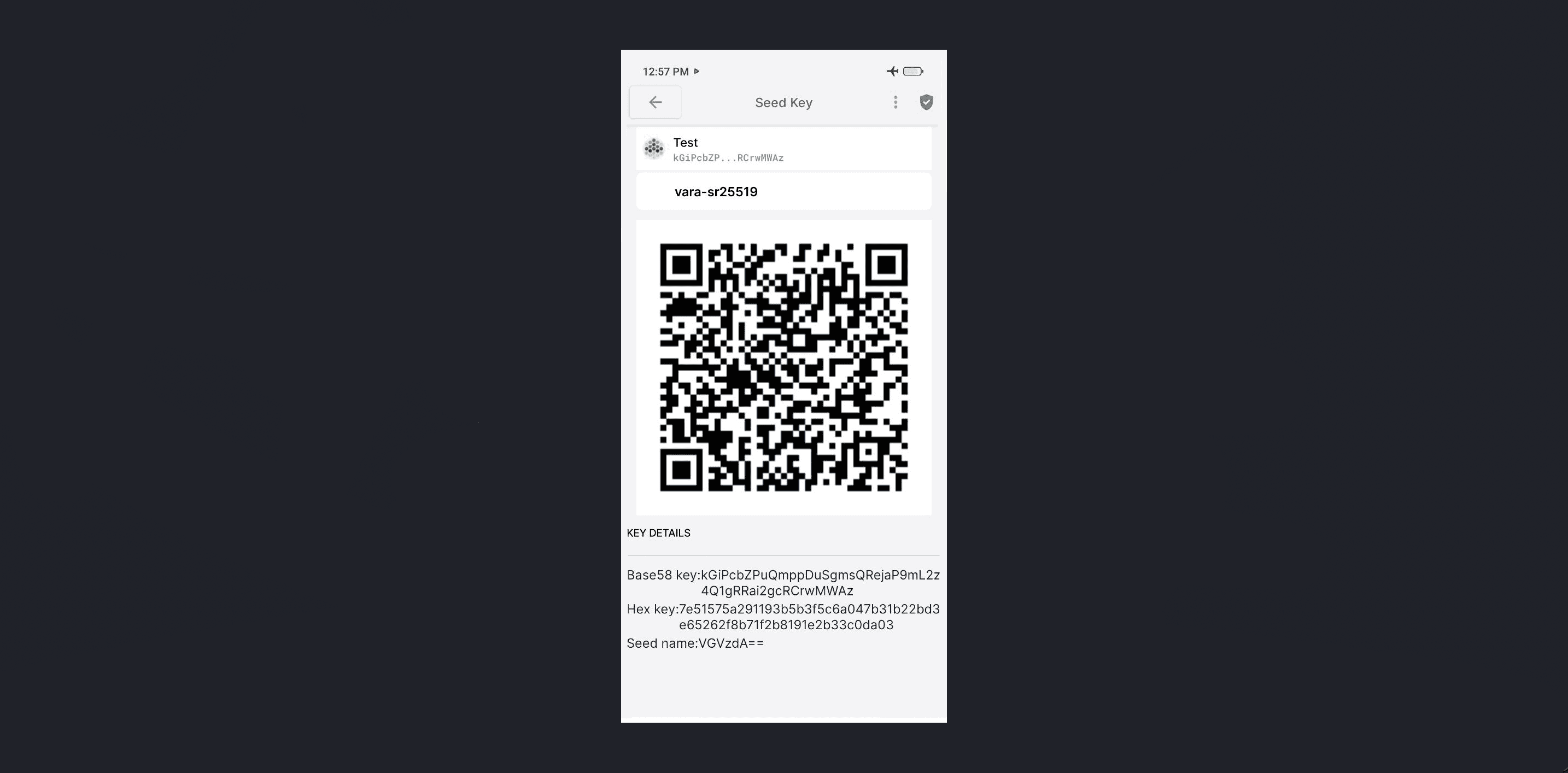
- Show your code to the camera.
Done! Now, when making transactions from this account, you will sign them with your Polkadot Vault app using QR codes.
Polkadot.{js} extension
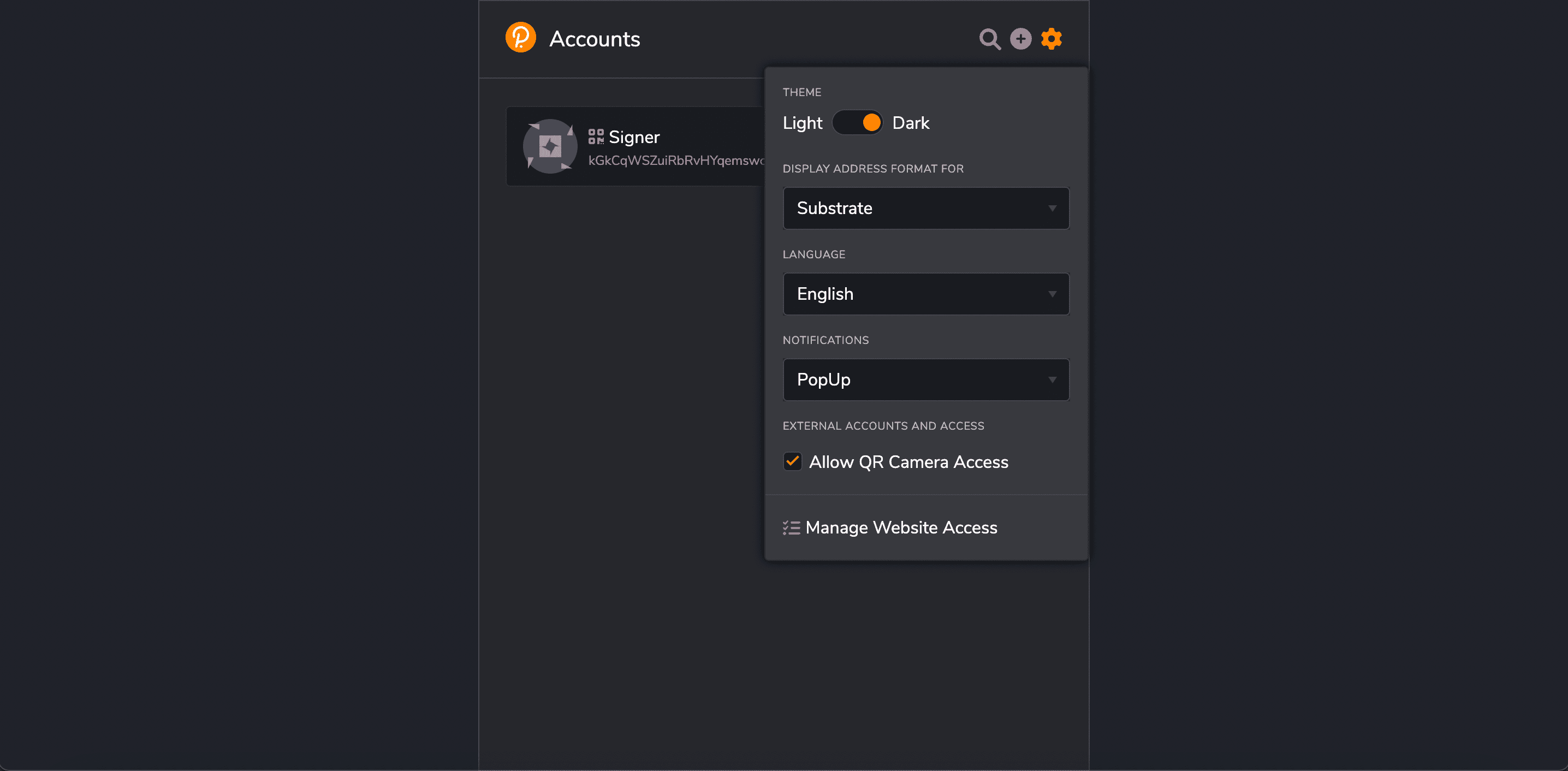
- In your Polkadot.{js} extension allow QR camera access
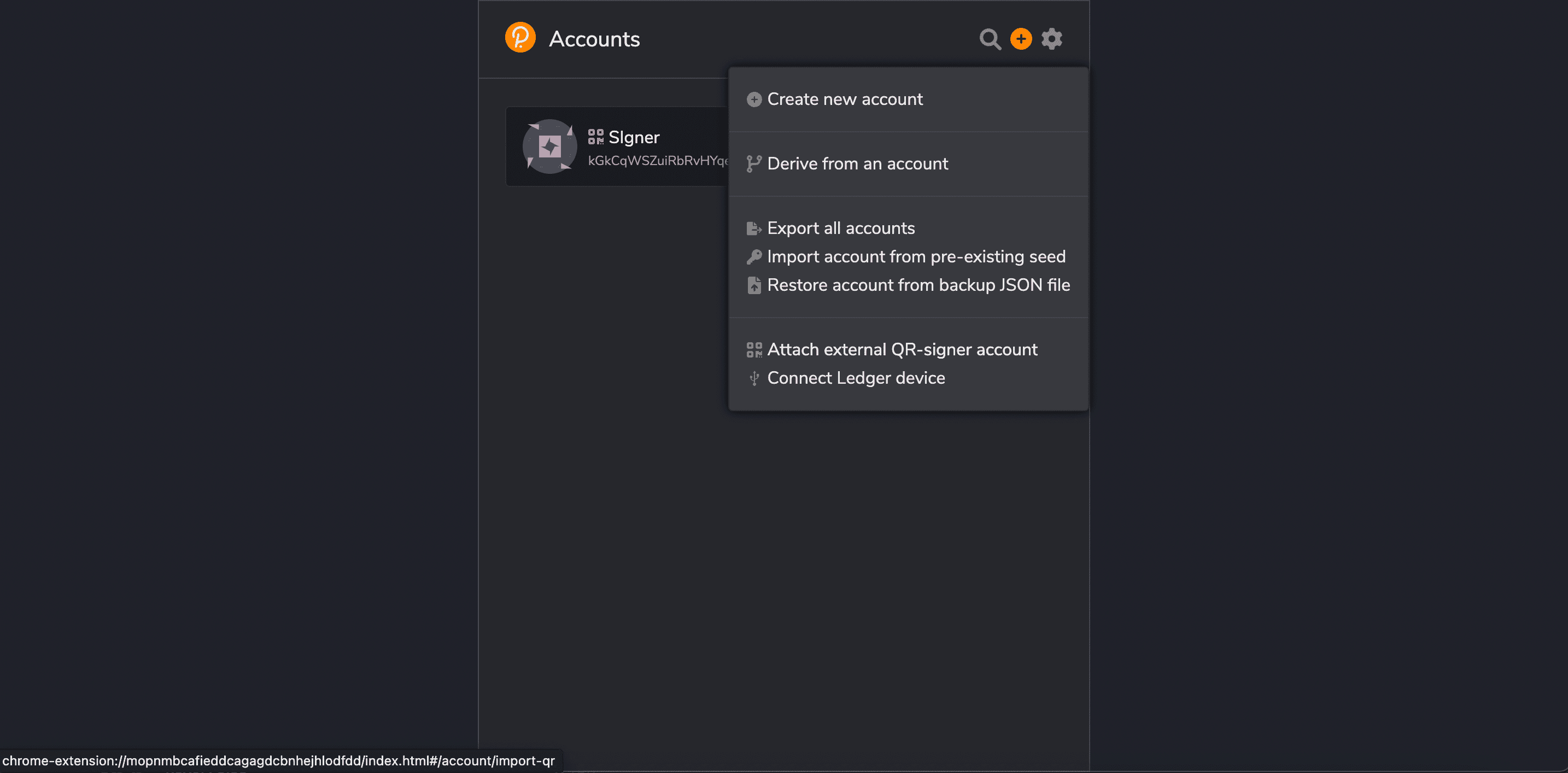
- Click
+ to import new account and chooseAttach external QR-signer accountoption:
- Show your account QR-code to the camera. Done!